How Do I Create a Session?
Start a new session, search for music, and get songs stemmed and ready to mix.
3 min read. Updated July 17, 2026
A session contains the songs you want to play and mix in STEM.FM.
When you choose a song, STEM.FM creates a session if one isn't already open and adds the song to it. The session contains your songs and lets you play and mix them using stem controls.
There are two ways to create a session: you can build a session yourself, or you can choose a suggested session from search.
Creating your first session
- 1
Open STEM.FM.
- 2
In the left sidebar, select New Session.
- 3
Go to the search bar.
- 4
Type what you want to hear.
- 5
Select the + next to the song you want to add.
STEM.FM adds the song to your current session.
Choose a suggested session from search
Use this when you want STEM.FM to build a session for you.
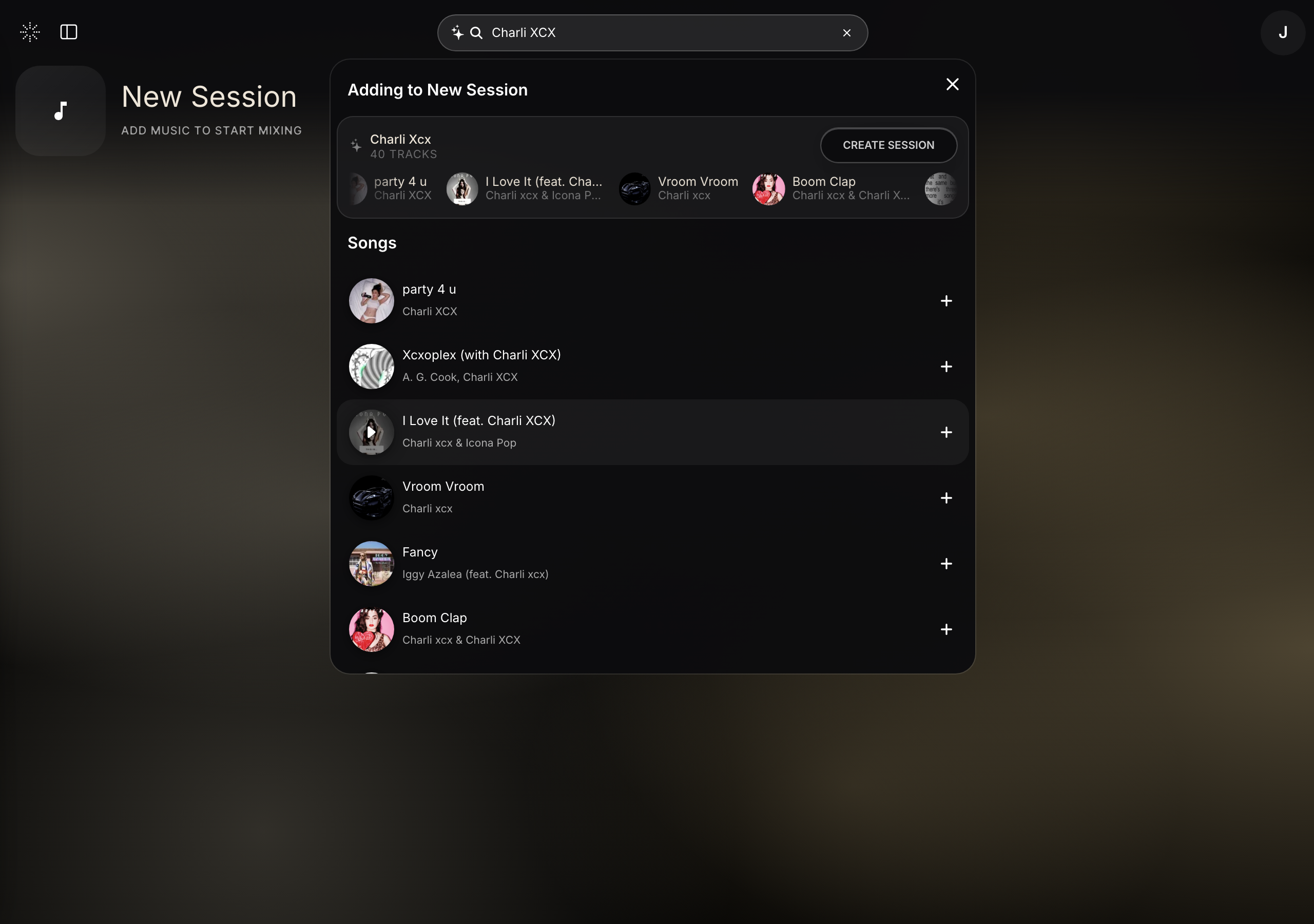
For example, you can search for a song, artist, mood, genre, or vibe. STEM.FM may show individual songs, or it may show a suggested session you can create.
- 1
Open STEM.FM.
- 2
In the left sidebar, select New Session.
- 3
Go to the search bar.
- 4
Type what you want to hear.
- 5
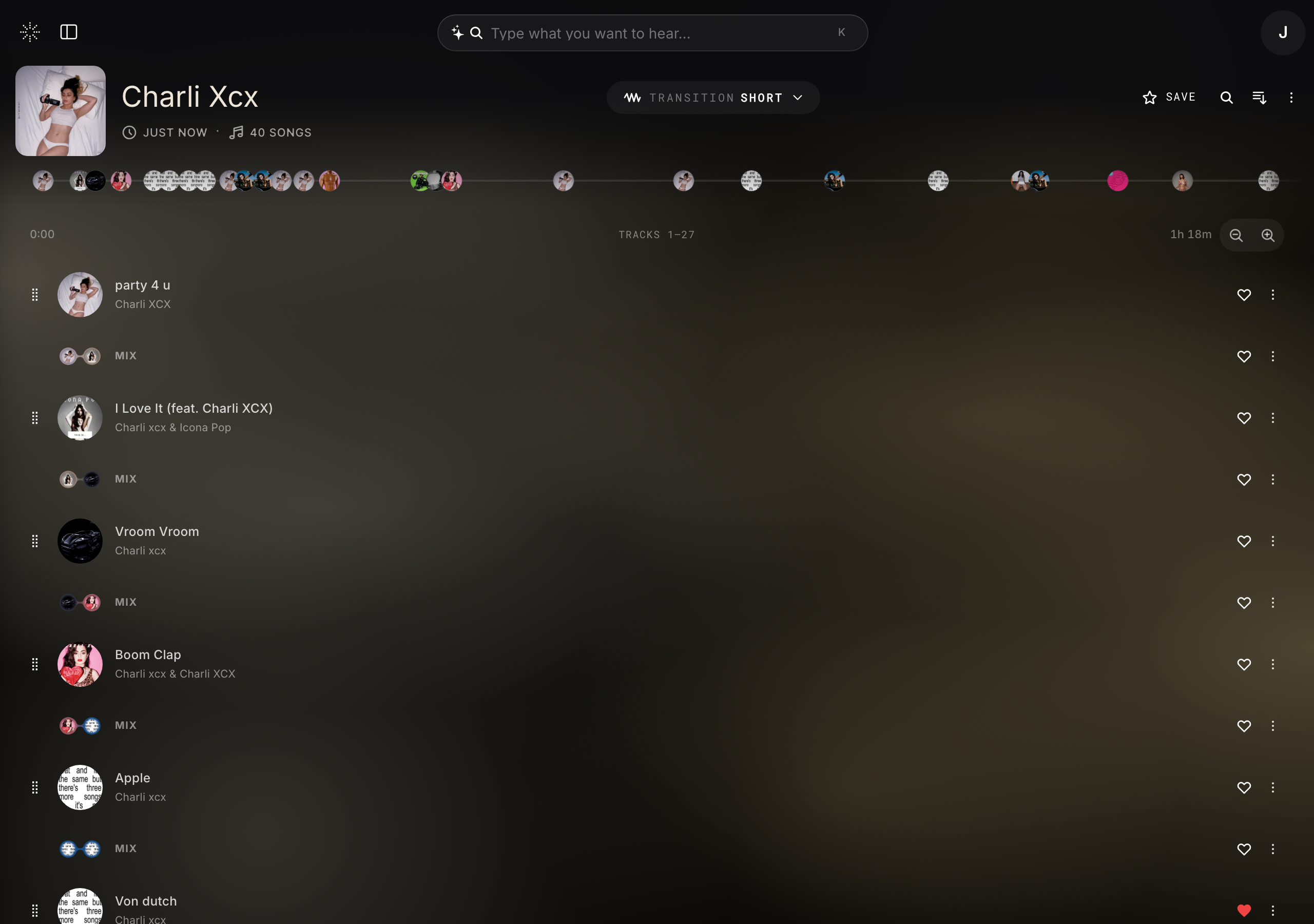
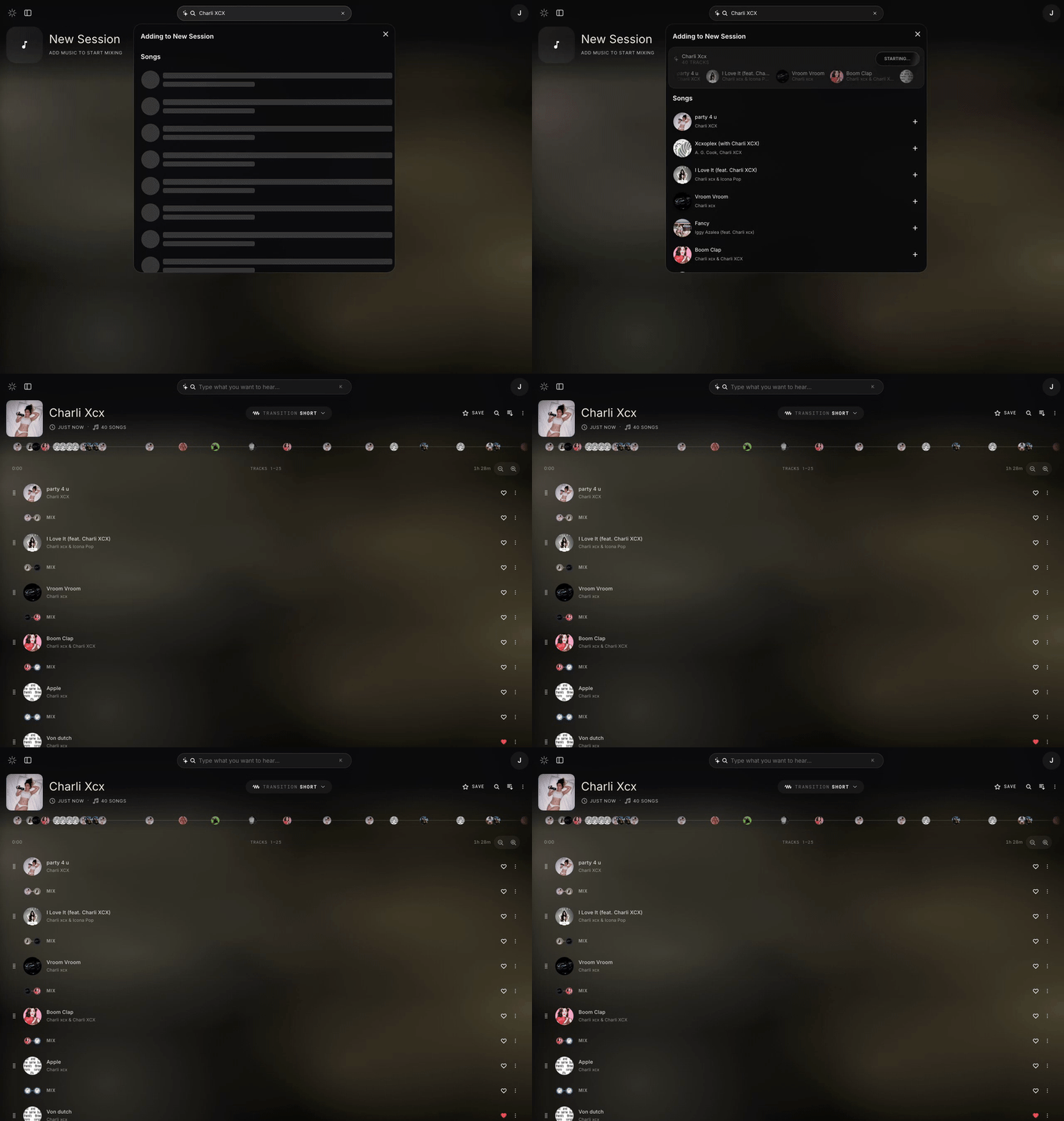
If STEM.FM shows a suggested session at the top of the search results, select Create Session.
STEM.FM builds a session based on your search.
What type of music can I add to my session?
Use the search bar to find music in different ways:
- type a song title or artist name
- paste a link from Spotify, YouTube, or Apple Music
- describe the type of vibe you want
- upload your own music
What appears after I search?
After you search, STEM.FM may show:
- individual songs
- a suggested session based on your search
- matching tracks that fit your current session
Choose the song or session you want to use.
What happens when I choose a song?
Once you select a song, STEM.FM adds the song to the session.
STEM.FM then stems the song into four stems:
- vocals
- drums
- bass
- instruments
Stemming usually takes a few seconds.
Once the song finishes stemming, you can press play and use the stem controls.
Can STEM.FM automatically make me a session?
Yes.
If STEM.FM shows a suggested session at the top of the search results, select Create Session.
STEM.FM builds a session based on your search.
How can I make my session sound better?
After your session has a song, STEM.FM may show suggested tracks at the bottom of the session.
You can also search for another song.
When you search for a new song after a session already has a track, a Match Score may appear.
The Match Score shows how well a new song should fit with the song already in your session.
You can choose a suggested song, or you can choose a different song from search.
What happens next?
If your session was empty, the selected song appears as the first song in the session.
If your session already had a song, the selected song appears below the current song in the same session.
You can rearrange the song order, play songs as full tracks, or use a playback mode to hear the session as a mix.
More detailed editing controls are coming soon with Stem Studio.