What is STEM.FM?
Learn what stems and sessions are, and how to start listening.
2 min read. Updated July 28, 2026
Welcome to STEM.FM. This guide explains the main features and terminology so you can start listening, mixing, and exploring with confidence.
In STEM.FM, you can:
- Play a song
- Control vocals, drums, bass, and instruments separately
- Mute, isolate, or adjust each stem
- Create mixes by combining songs
- Use playback modes to choose how fast the session moves
- Sync supported music to Stem2
- Use STEM.FM on app or web
What is a stem?
A song is made up of different musical parts, such as the vocals, drums, bass and melody. Each of these parts is called a stem.
The four stems available on STEM.FM are:
- Vocals
- Drums
- Bass
- Melody
Where is each stem located?
On the app and web version of STEM.FM, the four stem controls are arranged in the same place.
- Vocals: top
- Bass: left
- Melody: right
- Drums: bottom
What can I do with stems on STEM.FM?
You can control the vocals, drums, bass and melody separately.
- Mute a stem: Turn off one stem while the other three continue playing. For example, mute the vocals to hear the instrumental version of the song.
- Isolate a stem: Play one stem by itself and turn off the other three.
- Swap a stem: replace one stem with the same type of stem from another track.
What is a session?
A session contains the songs you want to play and mix in STEM.FM.
Learn more in our How Do I Create a Session? article.
App, web, and hardware
STEM.FM works across different surfaces.
Use the STEM.FM app for mobile listening, creating, and device connection.
Use STEM.FM web for browser access, desktop workflows, and hardware or upload features.
If you have an Android device, use STEM.FM in your browser.
Use Stem2 when you want hardware playback, syncing, or Bluetooth speaker mode.
Start using STEM.FM
- 1
Open STEM.FM
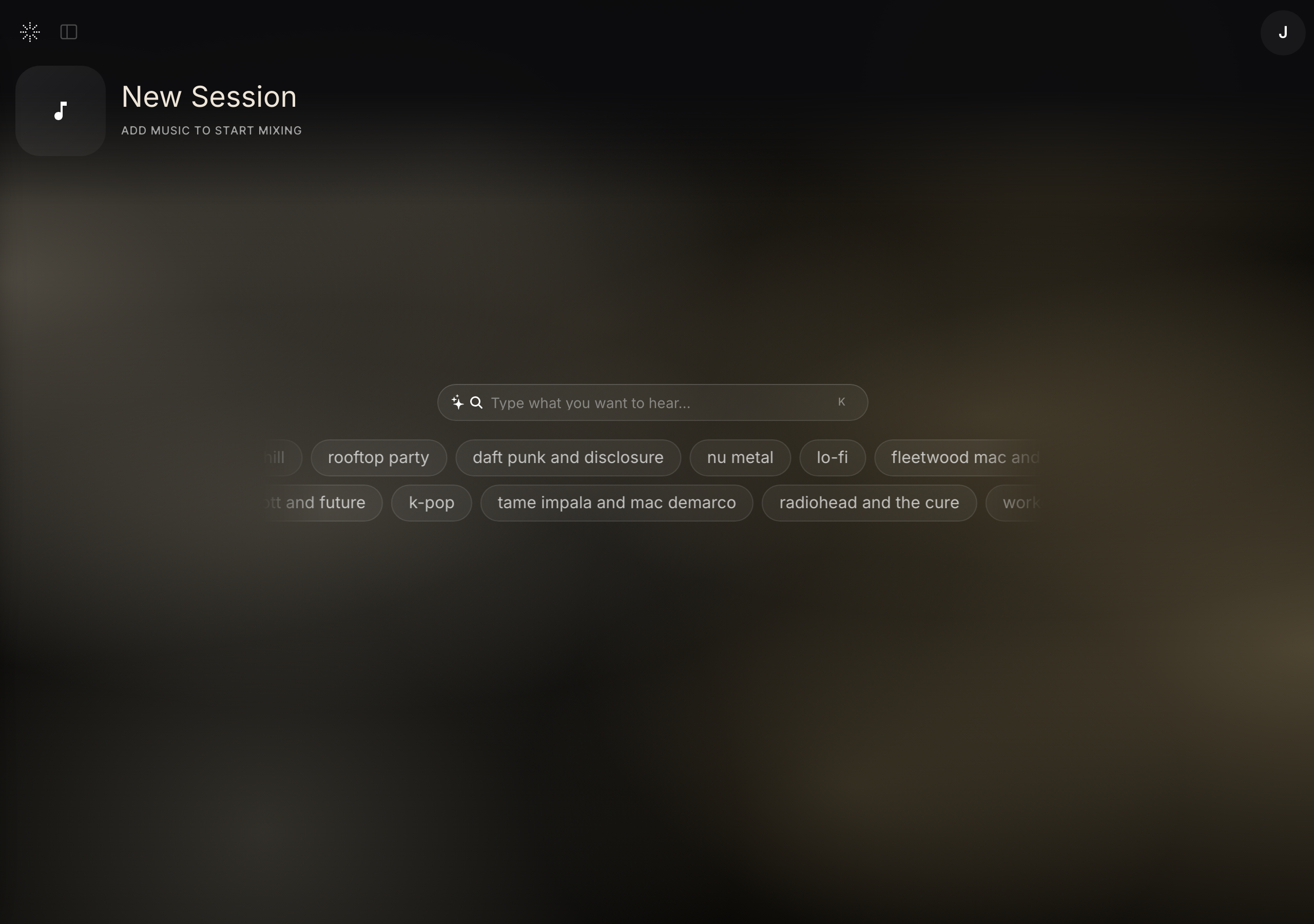
The STEM.FM home — start by searching or picking a vibe. - 2
Sign in to your account
- 3
Choose Create or open a session
- 4
Search for a song or artist
- 5
Select a track
- 6
Wait for the track to load
- 7
Press play
- 8
Use the stem controls in the player
For help, email hello@stemplayer.com.